Types
On this page
A type is a reusable definition that many elements share: "Exterior wall 365, brick cavity", "Window 1200 × 1300, two panes". The type holds the shared values (the build-up, the sizes, the frame, the curtain grid). Each element, an instance, keeps its own place and anything it overrides.
Change the type, and every instance follows, except where an instance overrides that value. Walls, curtain walls, doors, windows, slabs, roofs, columns and beams can have types. Furniture and fixtures always have one: see Furniture and fixtures.
The Types window
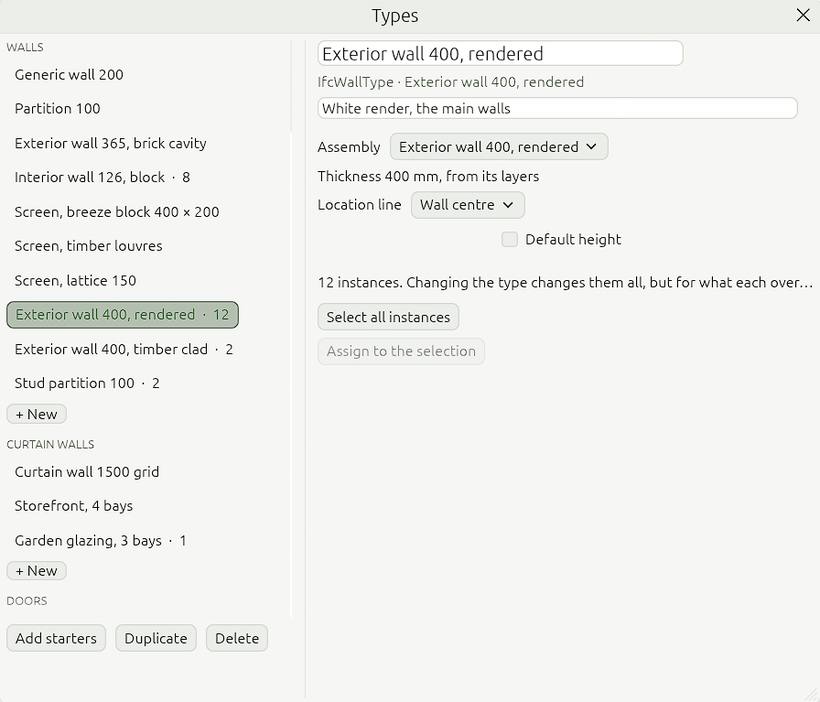
Open it with Materials › Types…, Create › Types…, or the ⋯ on the browser's Types group.
- Types are grouped by kind, with how many instances each has.
- Edit a type's values on the right.
- Add starters adds a starter set; Duplicate and Delete below the list.
- Select all instances and Assign to the selection at the bottom.
Seeing a type on its own
Double-click a type in the browser, or click Open preview in its Properties, to see it on its own: a 3D sample (drag it to turn it round), with its plan and section beside it. Change its values at the left and the sample follows.
Finding its instances
Select a type and tick Show in model in its Properties. Every instance lights up in the 3D view and the plan, and both views zoom to them. Tick Fade the rest to see only them clearly. The selection itself does not change. Untick it, or pick something else, to go back.
Drawing with a type
With the Wall, Door, Window, Slab, Roof, Column or Beam tool, pick a type in the Type menu at the start of the tool options. New elements are drawn as that type. Typing a size in the strip instead clears the type, since the size no longer matches it.
An element's type
Select an element. In Properties:
- the Type picker swaps its type (for every selected element at once);
- change a value to override it; overrides are listed in orange;
- Reset to type drops the overrides, Update type writes them into the type;
- Select all instances, Edit type…;
- Make a type of it turns an untyped element into a new type.
A schedule can group its rows by type: tick Group by type in the schedule's Properties.