Masters: title blocks
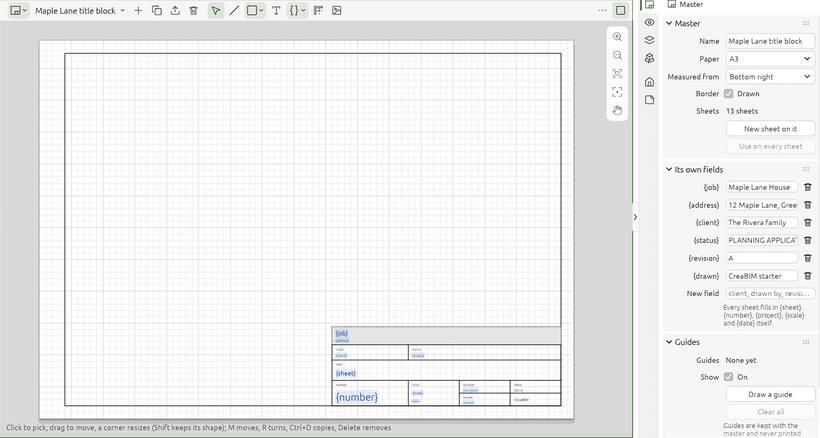
A master is the drawing every sheet sits on: its paper, border and title block, with the project's name, the sheet's number and the date filled in by each sheet. Masters are drawn in a view of their own, the Masters view, with lines, shapes, text, fields, pictures and logos.
Opening the Masters view
- Pick Masters in any area's view-type menu, or open the Masters group of the project browser.
- From a sheet's Properties, click Edit the master.
The header picks a master, and holds + (a new master from Standard A3, Minimal A3 or blank), Duplicate, Export SVG and Delete. Bring in an SVG or DXF… takes a frame or title block drawn in any drawing program.
Drawing on a master
| Tool | What it makes |
|---|---|
| Select | Pick, drag, or resize by a corner (Shift keeps the proportions) |
| Line | Click corners; Enter or a right-click ends it, the first corner again closes it |
| Shape | A rectangle (two corners), a circle (its centre, then a point on it) or an ellipse (two corners of the box round it), from its drop-down |
| Text | Click where it goes; its words, size and alignment are in Properties |
| Field | Text each sheet fills in: {sheet}, {number}, {project}, {scale}, {date}, or a field of your own (client, drawn by, checked…) |
| Guide | Two clicks; nearly level or upright, it goes straight |
| Picture | A logo, a stamp or a background: an SVG comes in as a crisp vector logo, a PNG or JPEG as a picture |
One rule for every tool: Enter or a right-click ends what is drawn and keeps it, Esc drops the piece in progress, and either with nothing going puts the tool down.
Everything snaps to what is drawn, to the margins, to a millimetre grid and to the guides. M moves what is picked, R turns it, Ctrl+D copies it 5 mm along and Delete removes it. Ctrl+] brings it over everything else, Ctrl+[ sends it under. Ctrl + middle-drag zooms.
The Master tab in Properties
With the Masters view in front, Properties shows the master:
- Paper, and Measured from: the corner the title block is measured from;
- the border and its margins (left, bottom, right, top);
- its own fields, named here and filled in per sheet;
- Guides: how many, show or hide them, draw one, clear them all. Guides are kept with the master and never printed;
- Pictures and logos, with each one's size, opacity and, for a logo, one colour;
- the picked line, shape, text, field or picture, with its pen, fill colour, opacity and words.
New sheet on it makes a sheet using this master; Use on every sheet gives it to every sheet of the project in one undo step. Deleting a master sends its sheets back to the built-in block.
Masters print on sheets, in PDF and in SVG export exactly as drawn. On dark paper black lines show light while you work, and still print black.
See also Sheets and title blocks.