Crop boxes
On this page
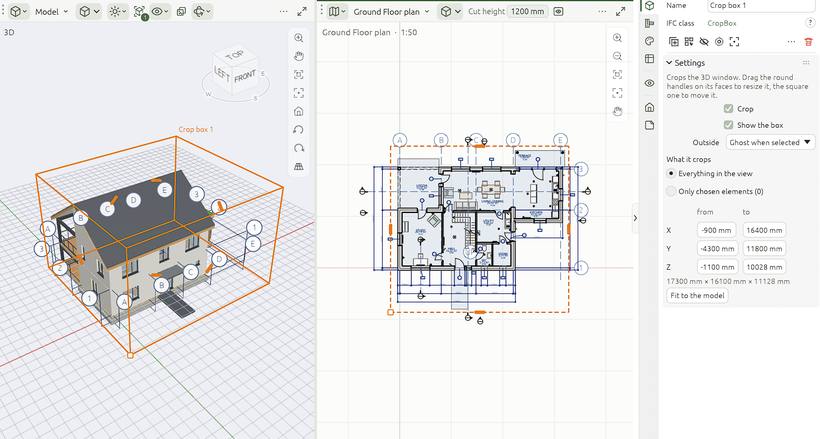
A crop box cuts a 3D view down to what is inside it, so you can see into the building: one floor, one room, a detail. It is like Revit's section box, with more:
- it can crop everything, or only chosen elements;
- a view can have as many boxes as you like; an element keeps only what is inside all the boxes that crop it;
- each box can be switched off (it stays but crops nothing) or hidden (its frame goes, but it still crops).
Cut faces are closed with a darker cap, so walls and slabs look solid, layer by layer.
Adding one
- View › Crop boxes › New crop box: a box fitted round the whole model.
- New crop box round the selection: fitted round what is selected, cropping everything.
- New crop box for the selection only: crops only the selected elements.
- Or Add crop box in Properties with nothing selected, or the + on the browser's Crop boxes group.
Shaping it
- Drag the round handles on its faces; they snap to the model.
- Drag the square handle at its corner to move it across the plan, or press G.
- Or type its extents in Properties: X, Y and Z from … to …, in project units. Fit to the model fits it again.
Cropping only some elements
Set What it crops › Only chosen elements, click Pick elements…, then click elements in the 3D view to add them (again to leave one whole). Picking a wall takes its doors and windows. Esc, right-click or Done picking ends.
Managing boxes
With nothing selected, Properties lists the boxes, each with Crop, Show the box, its name and Delete. View › Crop boxes lists them with on/off ticks.
In plans and sections
A crop box shows in plans (its footprint) and in sections and elevations (its extent across them), dashed in the crop colour: the selected one, and every box whose Show the box is on. Click its outline to pick it, and drag its face handles there as in 3D; the 3D view follows.
What shows outside
Outside, for each box, says what shows of what it crops away whole: Hidden, Ghost when selected (the default: a selected element outside shows as a dashed box with a faint fill) or Always ghost.
When something selected lies outside an active box, a chip at the top of the 3D view says so, with Extend the box (one undo step), Show anyway (the box leaves that element whole from then on) and Turn crop off.
Whose boxes
When a saved 3D view is open in an area, the 3D view shows and edits that view's crop boxes, and the view's drawing (and every sheet it is on) is cropped the same way. Otherwise the 3D view uses its own boxes.
Crop boxes only affect 3D views. Exports (IFC, glTF, FreeCAD) are never cropped.