Masses, modifiers and booleans
On this page
A mass is a free 3D shape you can model like in Blender: for early design studies, or anything that isn't a wall, slab or roof.
Making a mass
- Pick the Mass tool and click to place a box.
- Or extrude a closed sketch with E.
Editing its shape
- Click a face in the 3D view to select it, then press E to extrude it, or move it with G.
- Use Move face to push or pull a face by a typed distance.
- Rotate, tilt and scale it with R and S (see Move, rotate and scale).
Selected, a mass shows only its main grips: its base point (moves it), its turn grip and the clicked face's push and pull arrow. Every face's arrow, its corners, its edges and the lift arrow come in Edit mode (Tab).
Properties shows its Location, Rotation (XYZ Euler) and Scale, as Blender's Transform panel: a mass turns about X, Y and Z, so a shape drawn on a wall turns about the wall's axes.
Give a mass an IFC class in Properties (such as IfcRoof) and it is exported as that.
Mesh edit
The Mesh edit section of Properties works on the face you clicked: Extrude pushes it out with new sides (E), Move slides it, Taper shrinks it, and Inset draws a smaller face inside its edges, by the distance in Inset by. Inset makes a reveal, a recessed panel or a parapet: inset the roof face, then push it down. These change the mesh under its modifiers.
Modifiers
Modifiers change a mass's shape without touching it, so you can change or remove them later. Select a mass and open the Modifiers tab of Properties (the wrench), then Add modifier. The menu groups them under Repeat, Facade, Shape and Deform, each with its icon; hover one for what it is for:
| Modifier | What it does |
|---|---|
| Array | Copies in a row (a pergola's rafters): a count, or to fit a length; each copy can step by its own size, turn and grow |
| Radial array | Copies round a centre, picked in a plan or set to its middle: seats round a table, columns round a rotunda |
| Path array | Copies along a sketch or a guide: balusters, posts along a curve |
| Mirror | A mirrored copy, its plane at the middle or at an edge |
| Bevel | Rounds or chamfers the upright corners: all of them, the outside or the inside ones |
| Shell | Hollows it to a thickness, open at the top, the bottom or both |
| Solidify | Gives a surface a thickness, growing in or out |
| Slice by levels | Floors cut out of the mass, with a gap between: a quick tower study |
| Panelize | Facade panels with joints on its upright, rectangular faces |
| Louvres / fins | Fins on the sides facing north, east, south or west, at an angle |
| Taper and Twist | Narrows it towards the top, or turns it as it rises |
| Smooth | Smooths it; its Split kind keeps the shape and only adds faces |
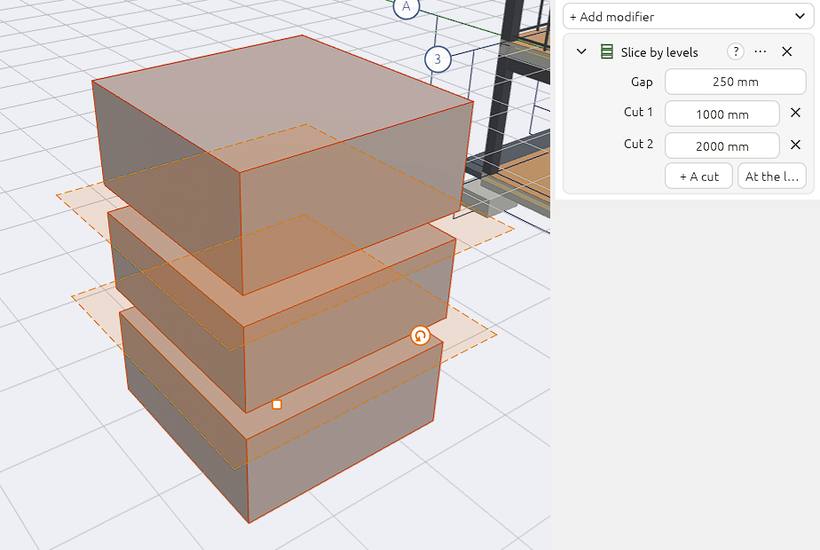
Each modifier is a card, as in Blender. Its icon switches it on and off, and folded it shows a one-line summary. Rename it, and use its … menu for Apply (make it part of the shape), Duplicate, Move up and Move down; the cross removes it. Open, its settings are rows, and the ? on the card explains it. The card you are working in shows its guides in every view: the radial centre and circle, the mirror plane, the slice floors as see-through planes. The Element tab says how many modifiers the mass has.
Booleans: cutting one shape from another
Select a wall, slab or mass, then under Booleans pick Subtract… and the element to cut away. The cutter stays as a see-through ghost you can select and move to change the cut. Switch it to Union or Intersect, or Remove it.