Move, rotate, scale, mirror and offset
On this page
Move by a base point
The most precise way to move something, as in most CAD programs.
- Select what to move, then press M (or the Move button, Edit › Move, or the right-click menu). With nothing selected, Move asks you to click what to move first.
- Base point: click a point to move it by, such as a corner. A snap marker shows what you will catch. Nothing moves yet.
- Follow: the selection follows the pointer, with a dashed line showing the distance.
- Place: click where the base point should go. It snaps to corners, midpoints, crossings and grid lines.
While it follows the pointer:
- Type a distance, such as 2400,
2.4 mor 8'-6", and press Enter: it moves that far in the direction you point. A bare number is in the project's units. - Press X, Y or Z to keep to that axis; again to free it. Hold Shift to keep it square.
- Press Ctrl to leave a copy behind with every click.
- Esc or right-click steps back, and again cancels.
The Move bar at the top of the view does the same with the mouse: axis chips for X, Y and Z in their colours (red, green and blue, as the axis lines in the view), a D badge for the distance, Copy, Finish and Cancel. Rotate and Scale use the same bar. Drag it by its grip if it is in the way; a double-click puts it back. To have it as a small palette by the pointer instead, see Settings › Interface › Move, Rotate and Scale bar.
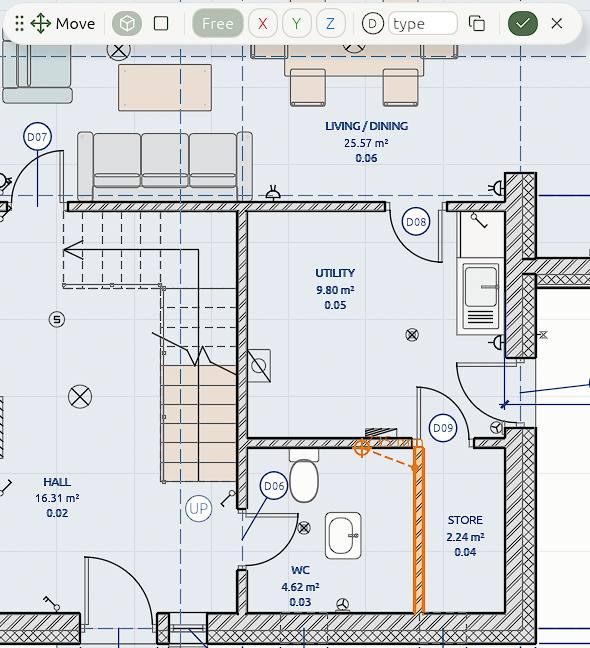
A move is one undo step. Doors and windows go with their wall, and walls joined to a moved wall stretch to stay joined.
Move a face (push and pull)
Press F during Move (or click Face on the Move panel) to move one face of an element instead of all of it.
- In 3D, point at the face itself. In a plan or section, point at the element's edge: it stands for the face square to the paper.
- Click, then move the pointer or type a distance. A minus sign pulls the face in.
What it changes depends on the face: a wall's end changes its length, its top its height and its side its thickness; a slab's top its thickness; a door's jamb its width; a column's side its size; a mass's face moves its points; an extrusion drawn on a face gets deeper square to that face from its outer face, or wider from a side. Press F again for whole elements.
Grab with the pointer: G
With the pointer over a view, G grabs the selection and it follows the pointer straight away, from the snapped point under the pointer. Click or Enter to finish. Axis keys, typed values and Esc work as in Move.
Drag
Press on a selected element and drag it. Its grab point and where it lands both snap. A small movement doesn't count, so a click never moves anything. See also Handles and grips.
Rotate: R
- Select, then click Rotate or press R over a view.
- Click the centre, then a reference direction, then the new direction. Each snaps.
- Or type an angle, such as 30, and press Enter.
Press R, then X or Y, to tilt a mass about that axis. In a section, R tilts about the axis you look along. Walls and slabs stay upright.
With the workplane on a face, Move slides along the face and Rotate turns about the face's normal, so a part drawn on a wall turns on the wall.
Scale: S
S over a view scales the selection with the pointer, or by a typed factor. Press X, Y or Z to scale along one axis only: a wall changes its height, a slab its thickness.
Duplicate: Shift+D
Shift+D copies the selection and starts moving the copy.
Mirror
Edit › Mirror (or the right-click menu) flips the selection across a line. Click two points on the line. It makes a copy; press Ctrl to flip the original instead.
- Shift keeps the line to 15° steps from the axes, and a typed angle, then Enter, sets it.
- With the workplane on a face, the line lies on the face, and a part on the face is flipped across it and still stands out of the face.
- Walls keep their outside out. Objects and columns move and turn to match, but keep their own shape.
Offset
Edit › Offset makes a copy a set distance to one side. Move the pointer to the side you want and click, or type a distance and press Enter; Shift rounds to 50 mm. Ctrl changes the original instead of making a copy.
A closed outline (slab, roof, ceiling, shaft, extrusion) grows outwards or shrinks inwards. A line (wall, beam, grid, room separator, strip footing, railing) moves sideways. A sketch, an extrusion drawn on a face or a sweep offsets on its own plane.
The pivot
Rotate and scale turn about the pivot, chosen in the status bar or Edit › Pivot: the median point, the bounds' centre, each element's own origin, the active element, or the pivot cursor. Shift+right-click anywhere places the cursor and makes it the pivot.
Extrude: E
Select a face of a mass in 3D, or a closed sketch, and press E to extrude it.